A tour of the screens

Pick a capability and click the steps; click an image to enlarge it. Screens are shown with sample company data; the application interface is in Turkish and English.

OMENTA · MDM
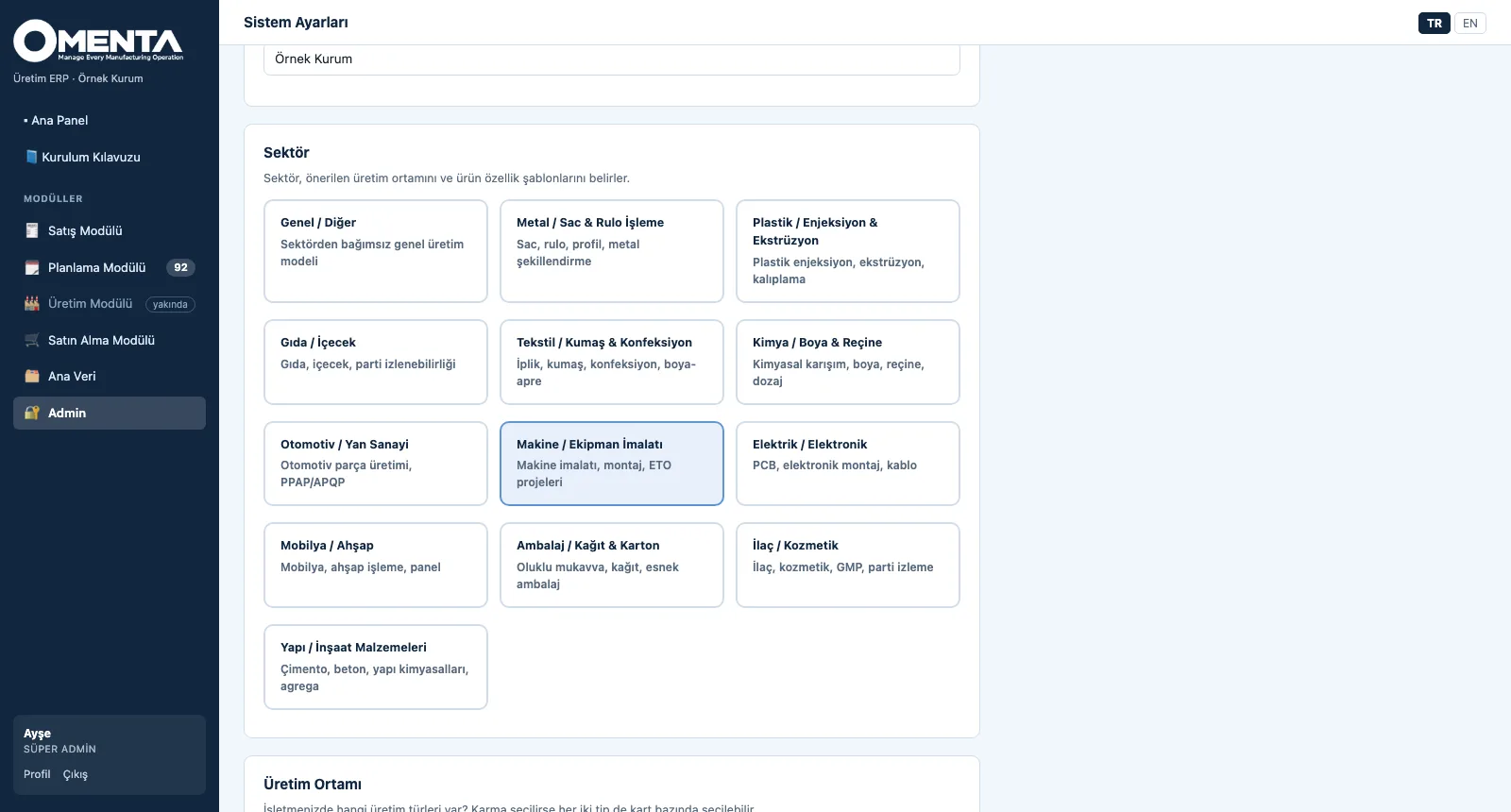
MDM — Set up the system
MDM · Explore

Screens are shown with sample company data; the application interface is in Turkish and English.

MDM · Set up

Master Data and Set-up

From set-up to a traceable item card in four steps.
MDM — Set up the system
1. Set up the systemEnter the company name, choose your sector and set the production environment; the sector brings product attribute templates and a suggested environment.
MDM — Follow the guide
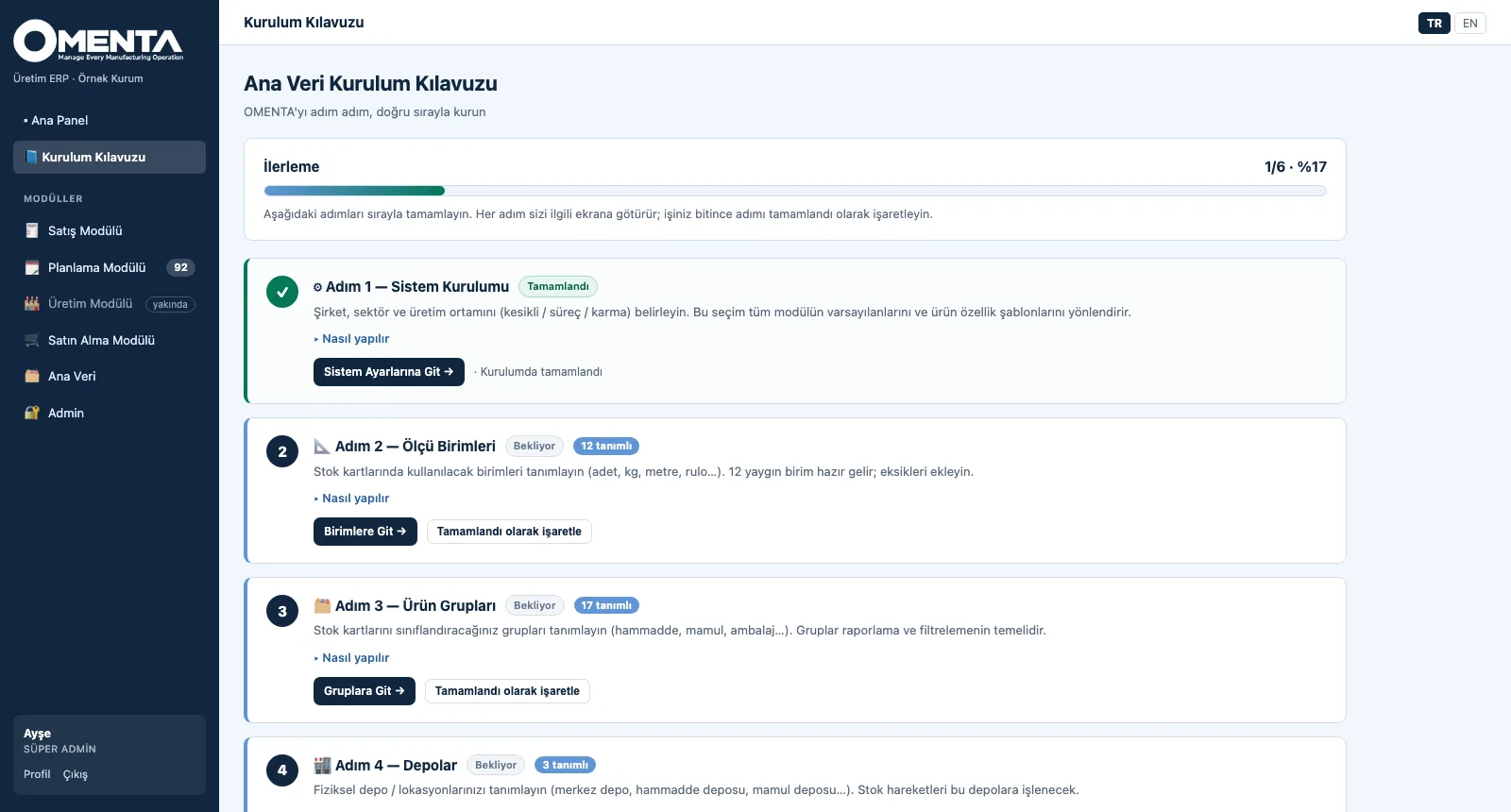
2. Follow the guideEach of the six steps comes with its reason, how-to and a button to the right screen; completed steps are checked off and progress shows on the dashboard.
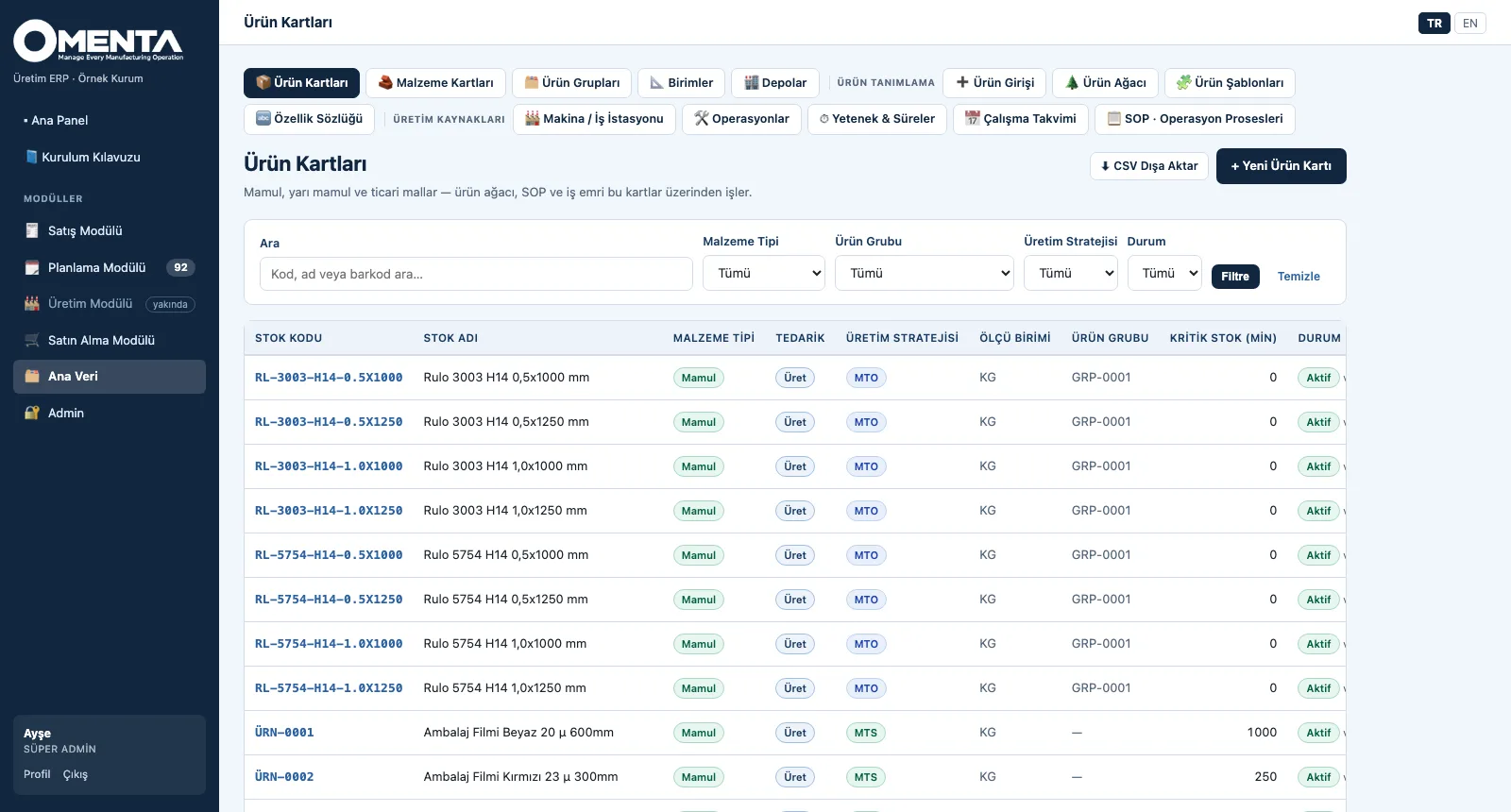
MDM — Create the item cards
3. Create the item cardsProduct and material cards in separate lists, filtered by type, group, strategy and status, exported as CSV.
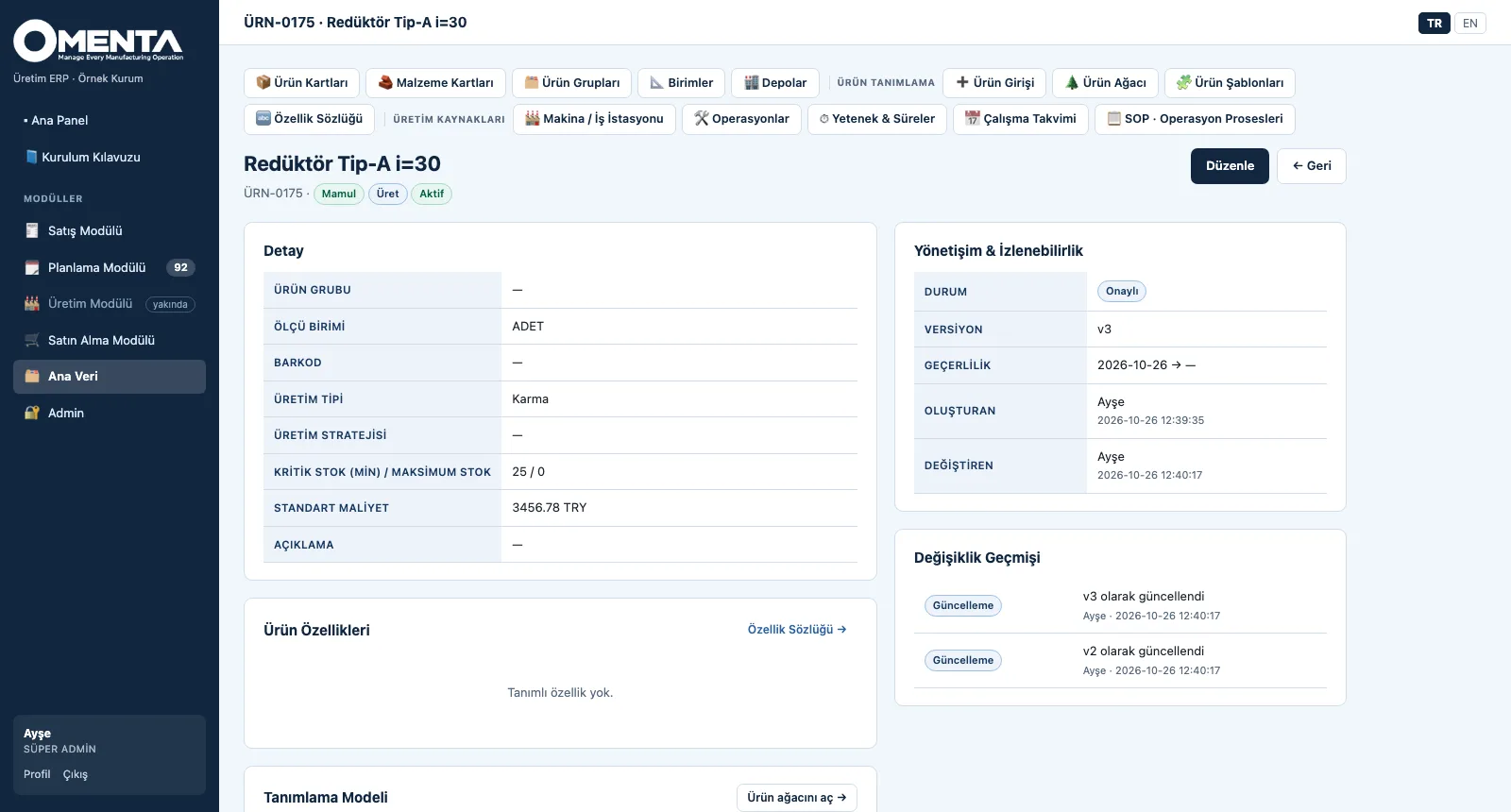
MDM — Trace every change
4. Trace every changeThe card detail shows status, version, validity, created and changed by; the change history lists every update with person and time.

MDM · Explore

BOM · Define

Product Definition

From the entry gate to variants in four steps.
BOM — Choose the structure
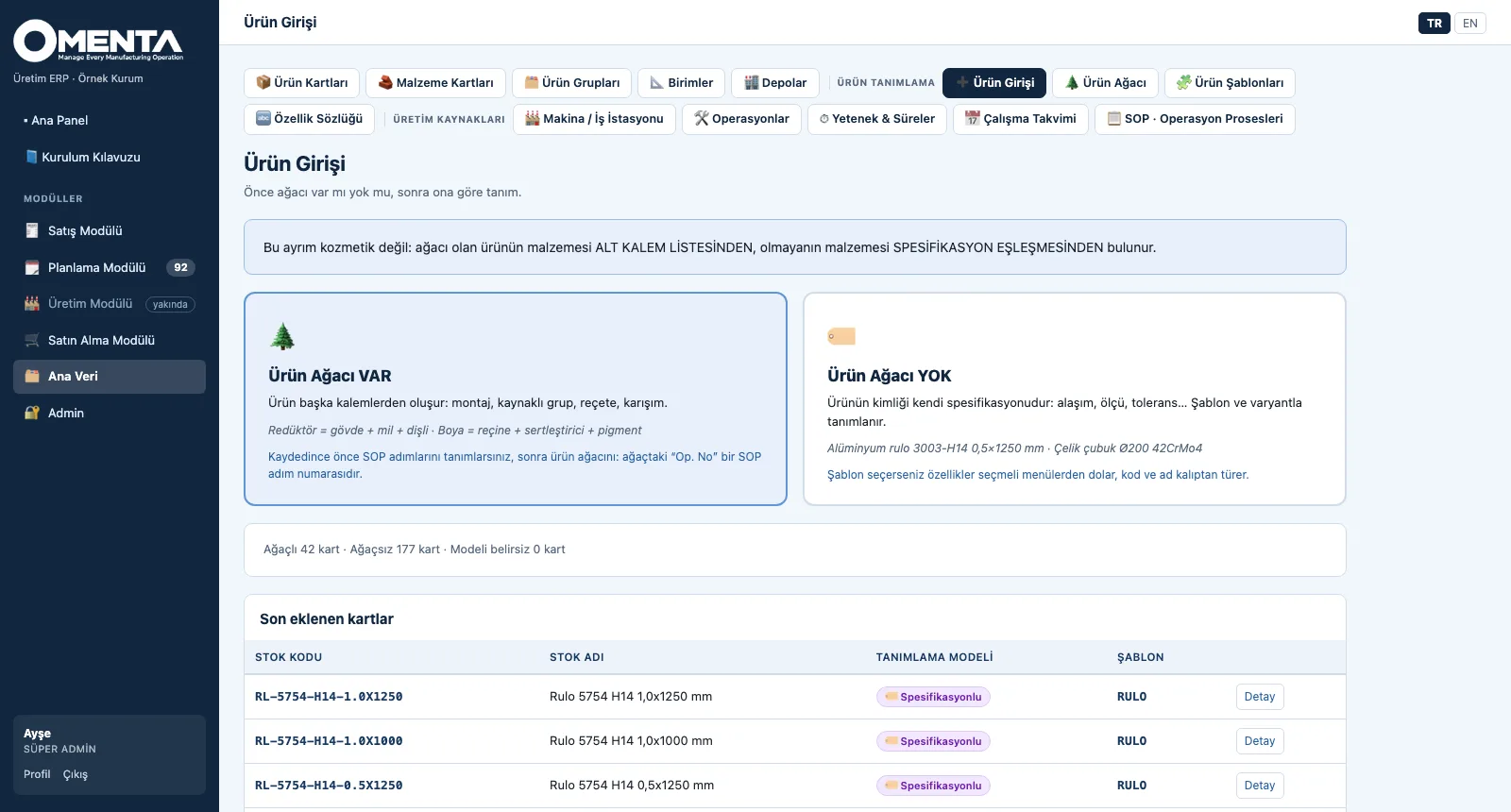
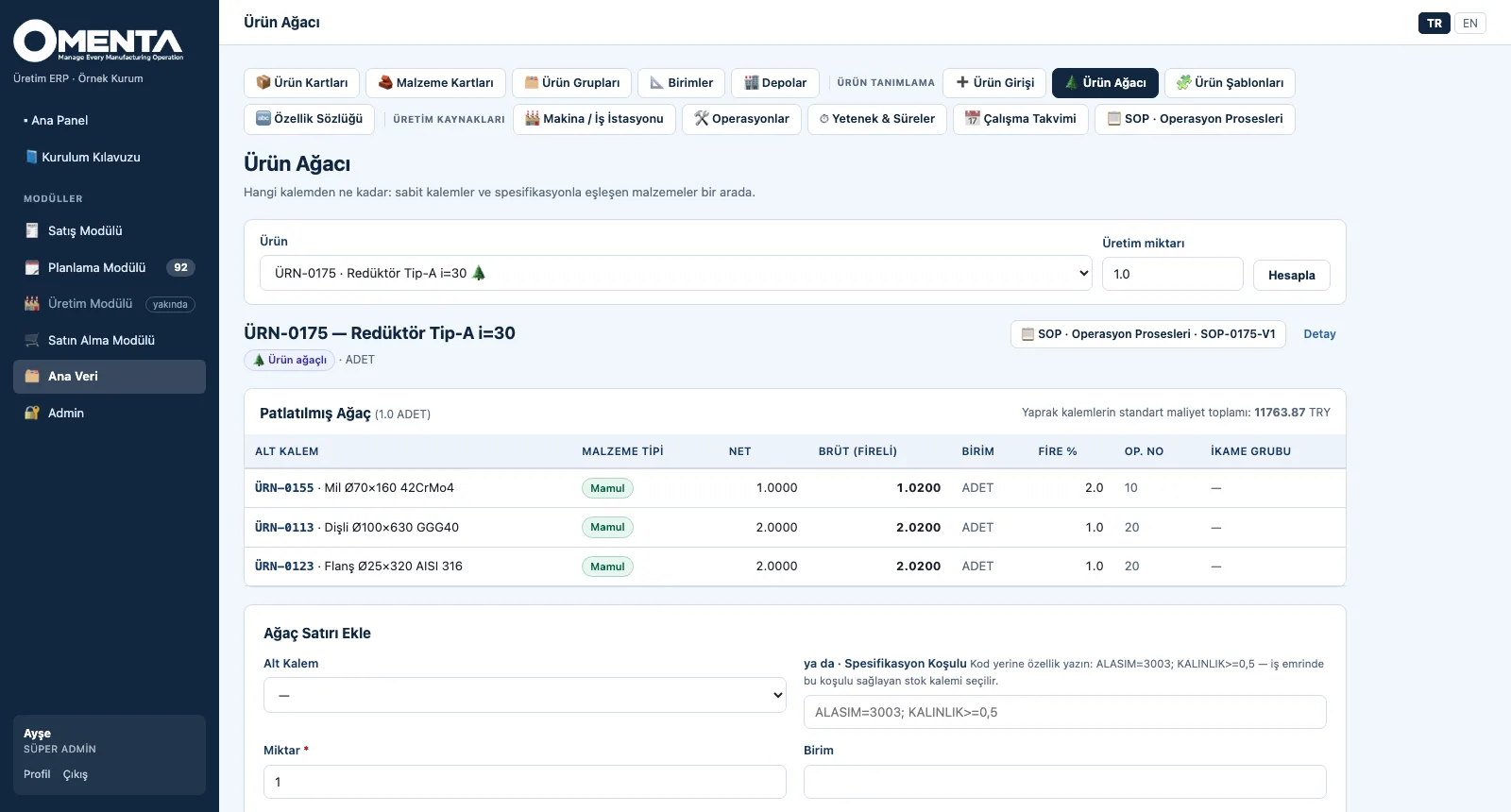
1. Choose the structureDoes it have a tree or not? A product with a tree is defined by its components, one without by its specification; recent cards are listed with their definition model.
BOM — Build the tree
2. Build the treeThe exploded tree shows net and gross (with scrap) quantity, unit, operation no and substitute group; the standard cost is rolled up from the leaf items.
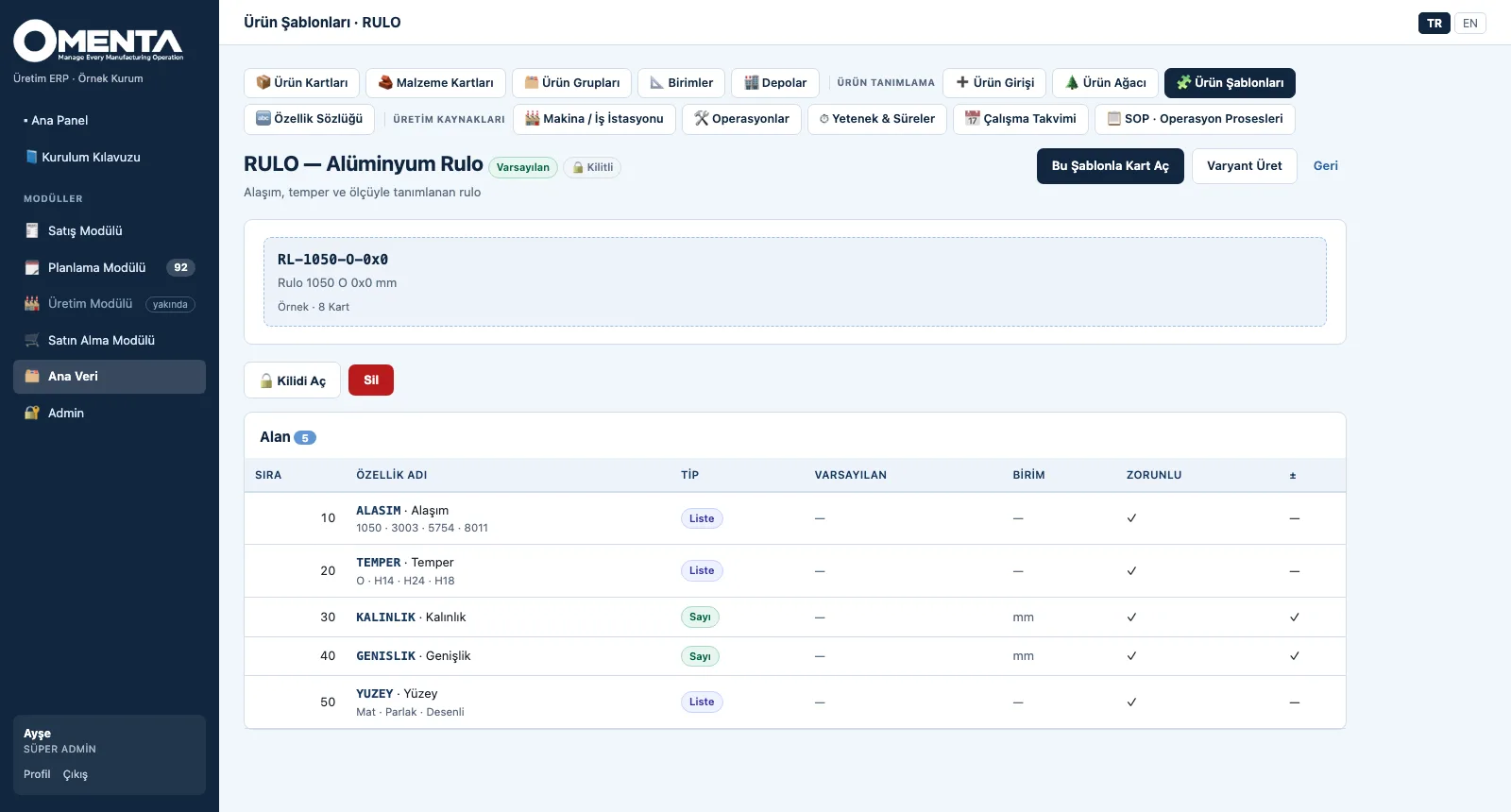
BOM — Build the template
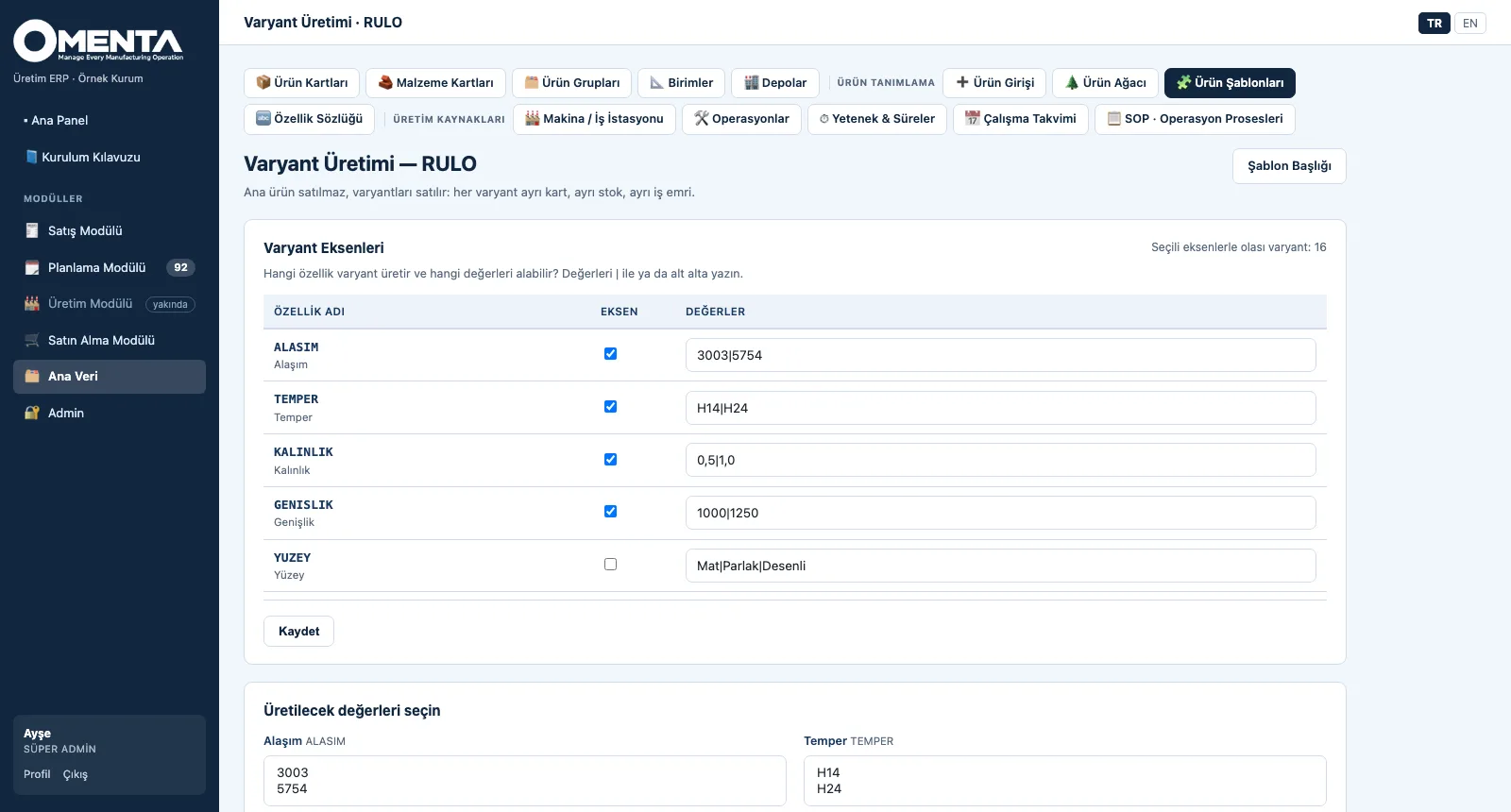
3. Build the templateAttributes are defined once in the dictionary; the template sets which attribute is asked in which order and how code and name are derived; fields cannot be added to or removed from a locked template.
BOM — Generate the variants
4. Generate the variantsChoose the axis attributes and their values; the number of possible variants is shown, the chosen combinations are previewed and created as cards.

BOM · Explore

RES · Standardize

Production Resources and SOPs

From resources to a standard process in four steps.
RES — Define the work centres
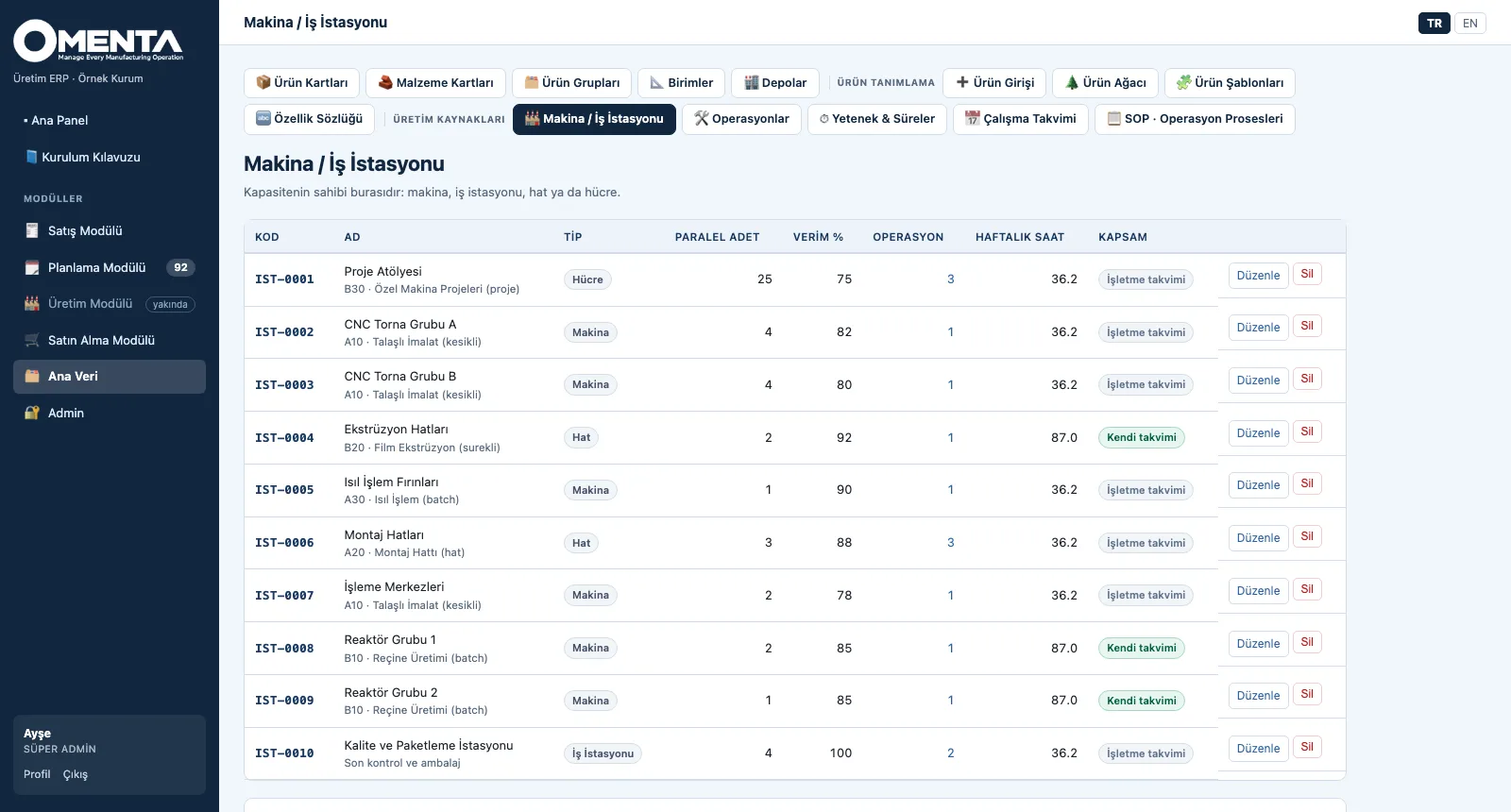
1. Define the work centresEach work centre with its type, parallel units and efficiency; weekly net hours and whether it uses the plant calendar or its own show in the list.
RES — Enter the capabilities
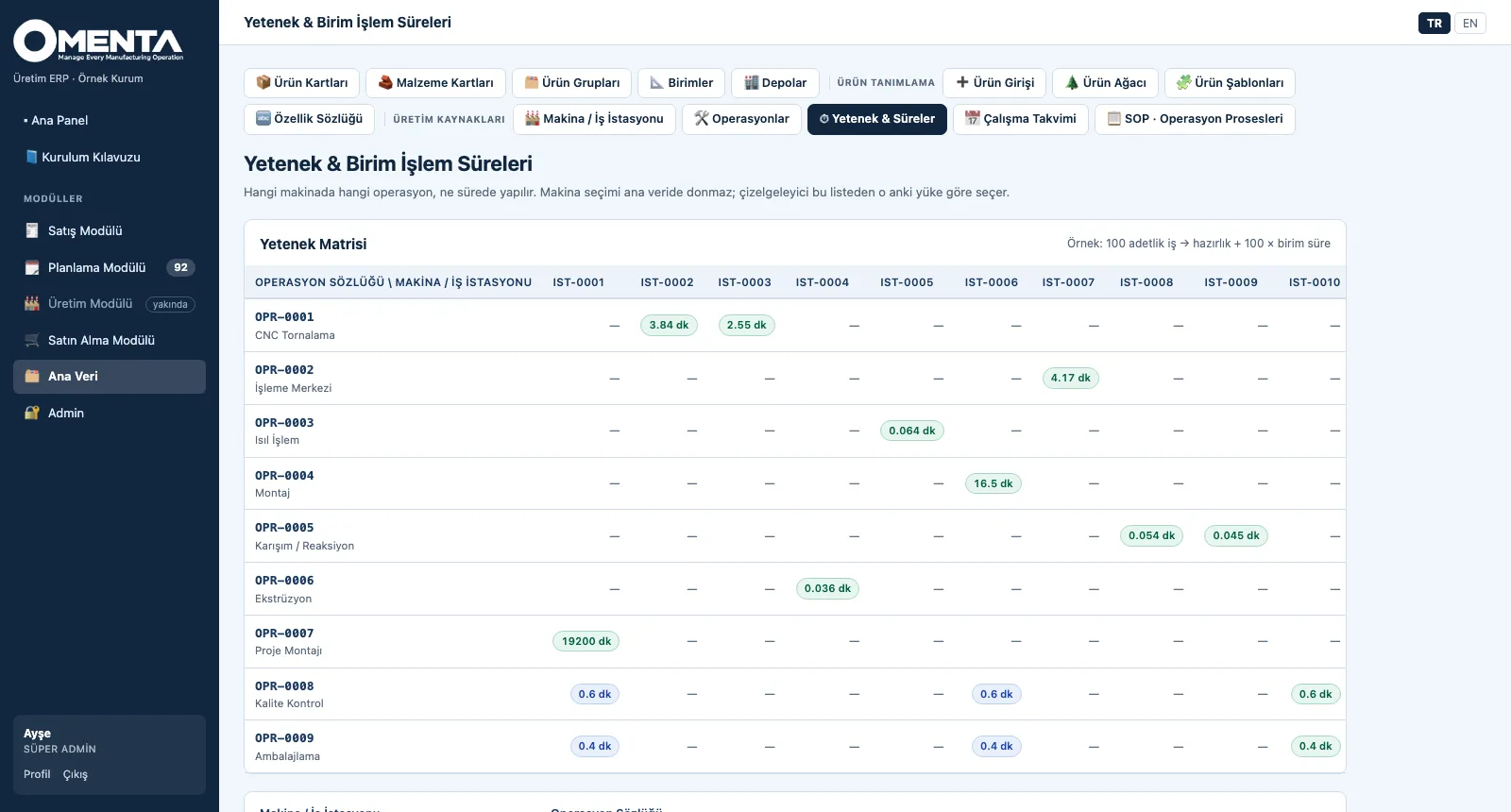
2. Enter the capabilitiesThe matrix shows which operation runs on which machine and in how many minutes; click a cell to enter time, setup, preference and availability.
RES — Set the calendar
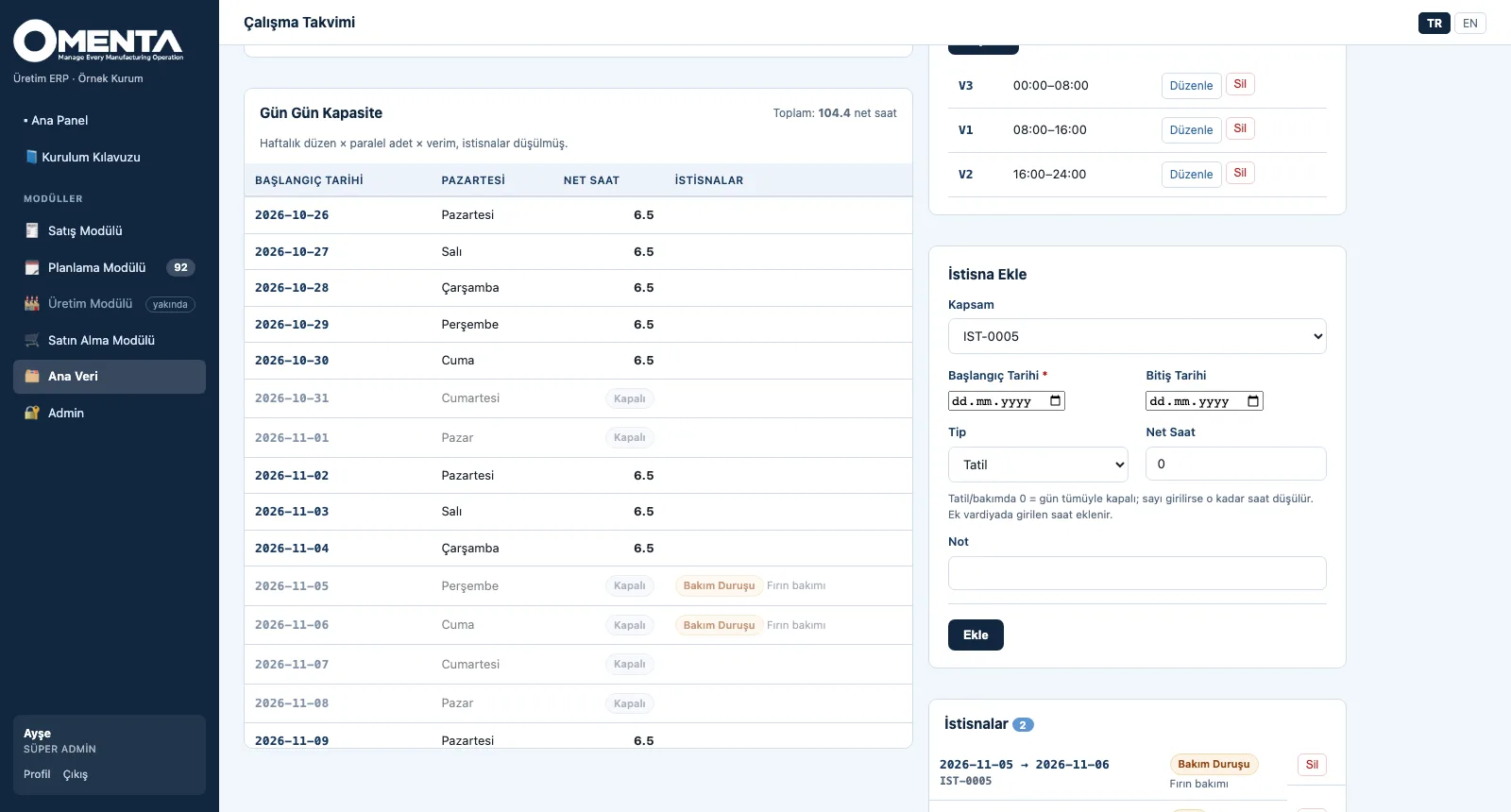
3. Set the calendarWeekly pattern × parallel units × efficiency, net of exceptions, as day-by-day capacity; maintenance and holiday days show as closed.
RES — Write the SOP
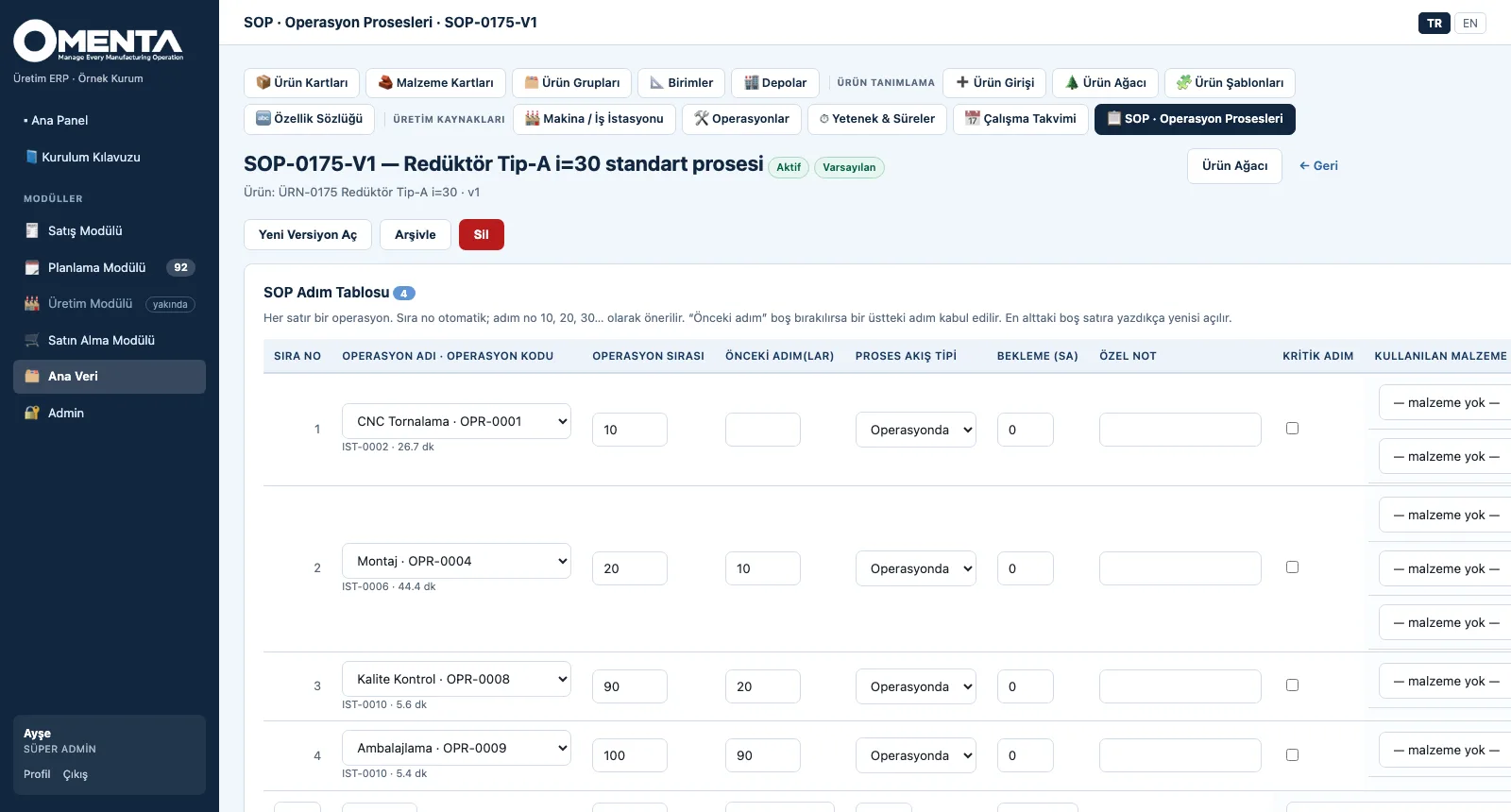
4. Write the SOPSteps are saved together as a table: operation, predecessor, flow type, waiting time, critical step and consumed material; a machine and time suggestion appears under each step.

RES · Explore

SO · Commit

Sales Orders and Order Status

From request to firm order in four steps.
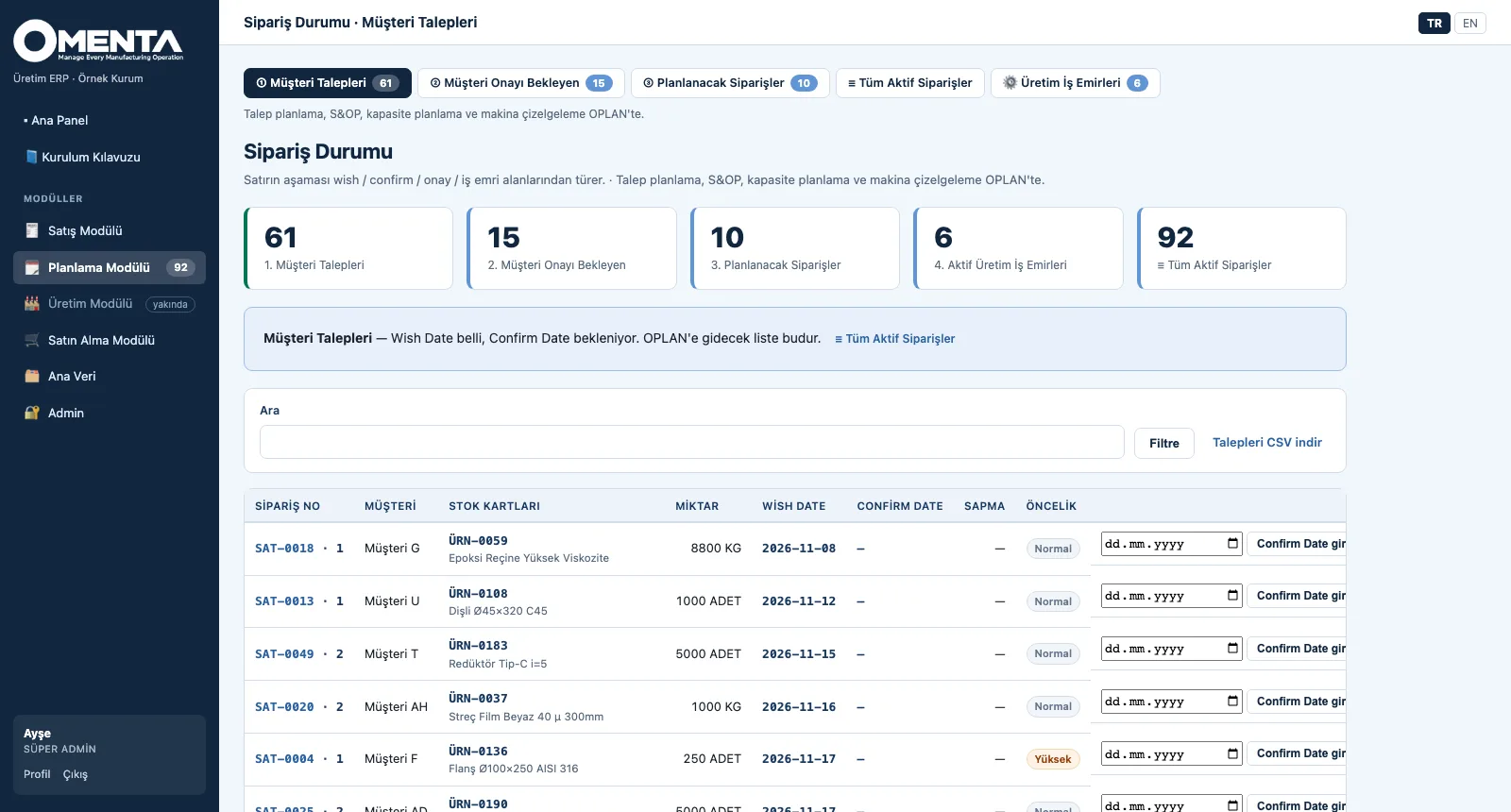
SO — Enter the order
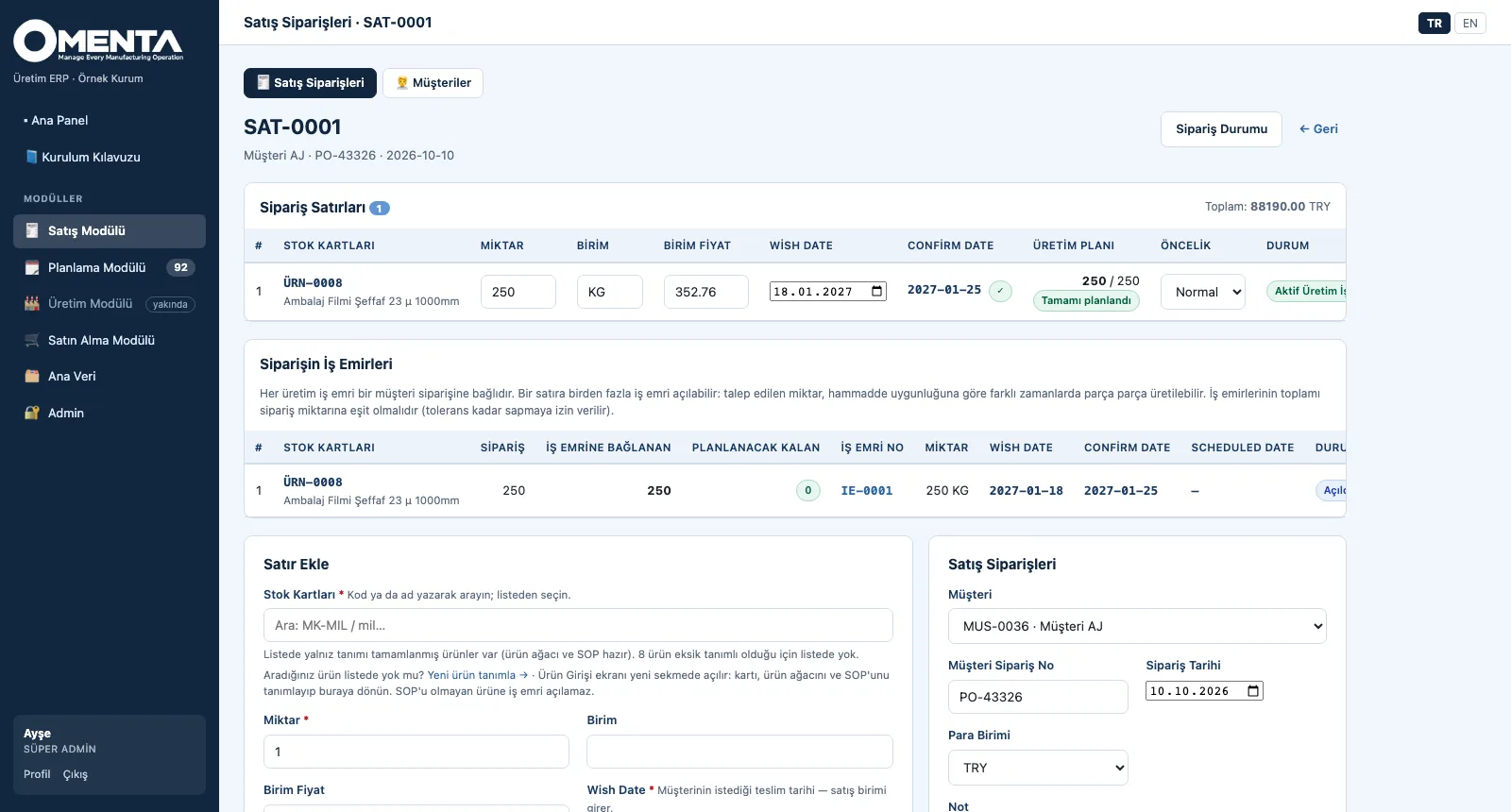
1. Enter the orderEach line shows wish and confirm date, production plan (planned / ordered) and status; the work orders tied to the order are listed on the same page.
SO — Collect the requests
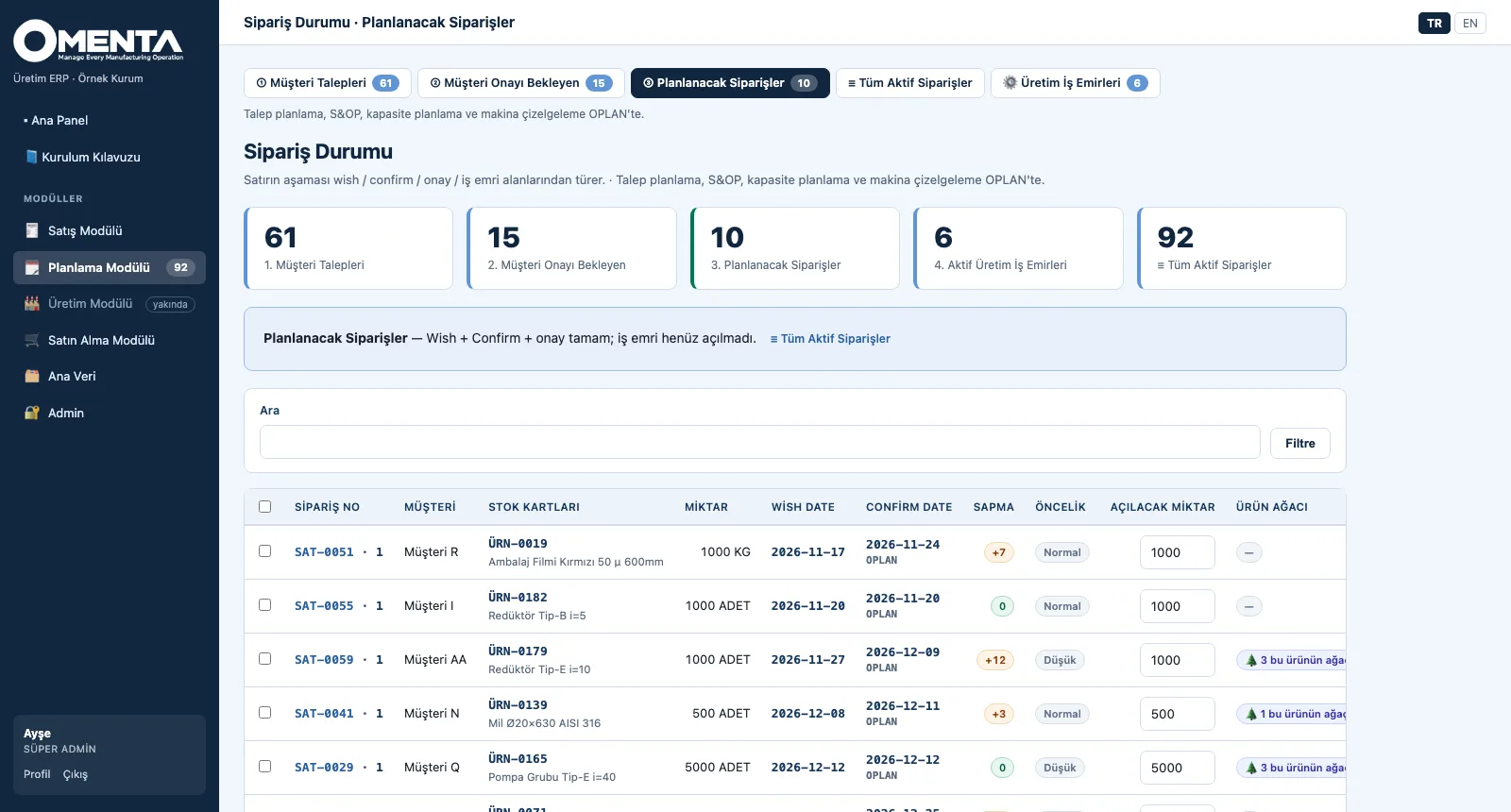
2. Collect the requestsLines with a wish date that are waiting for a confirm date; this is the list that goes to OPLAN, also downloadable as CSV.
SO — Approve
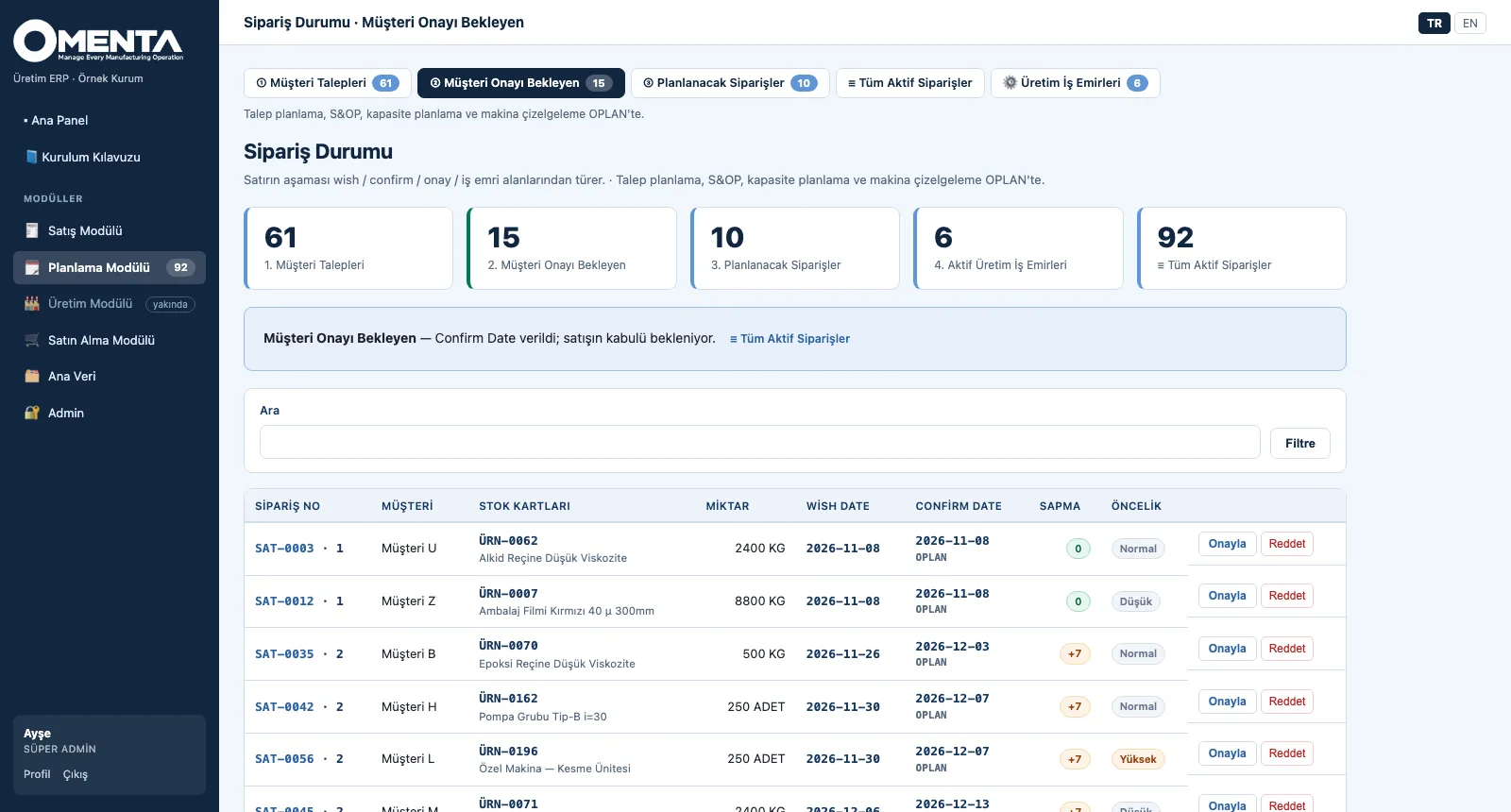
3. ApproveFor lines that received a confirm date, the gap shows in days; sales approves or rejects each line.
SO — Release to planning
4. Release to planningApproved lines without a work order; the quantity to open and the product tree status are shown, and work orders are opened from the selected lines.

SO · Explore

WO · Produce

Work Orders and the OPLAN Link

From the order to the work-order tree and to planning in three steps.
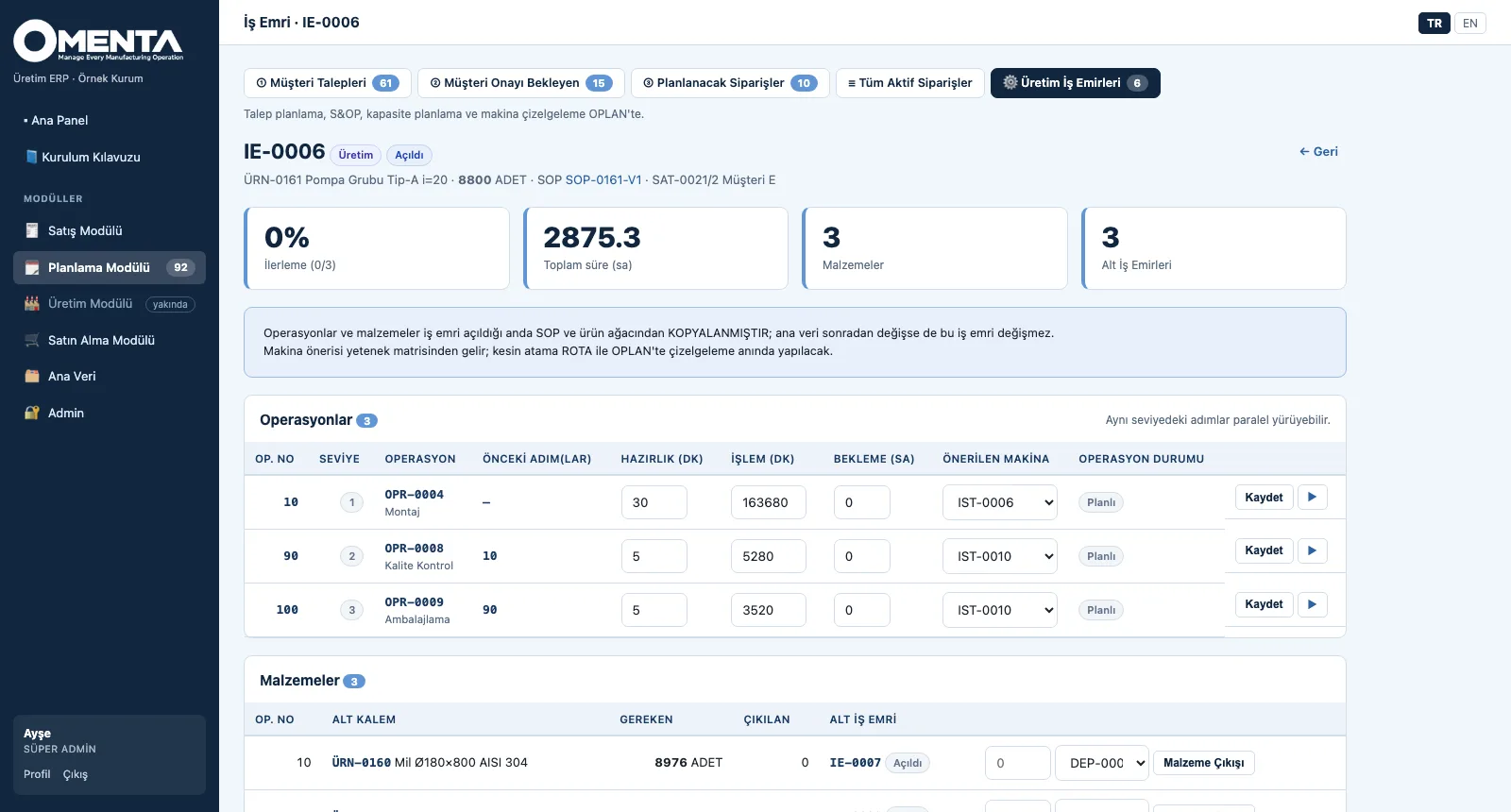
WO — Follow the work orders
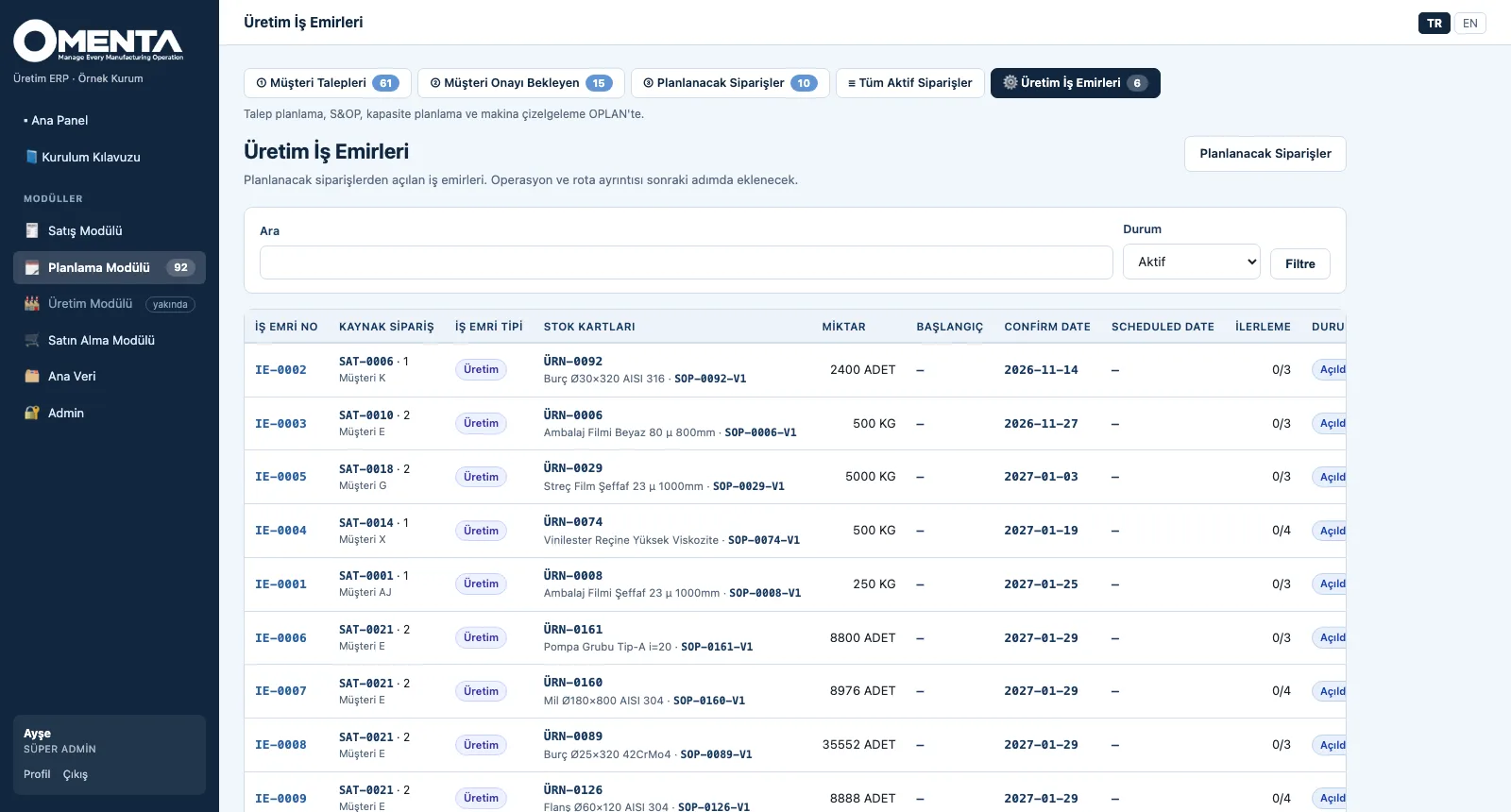
1. Follow the work ordersEach work order is listed with its source order, type, product, SOP, quantity, confirm and scheduled dates and progress.
WO — Open the tree
2. Open the treeProgress, total time, materials and number of child work orders at the top; below, levelled operations, suggested machines and materials made by child work orders.
WO — Publish to OPLAN
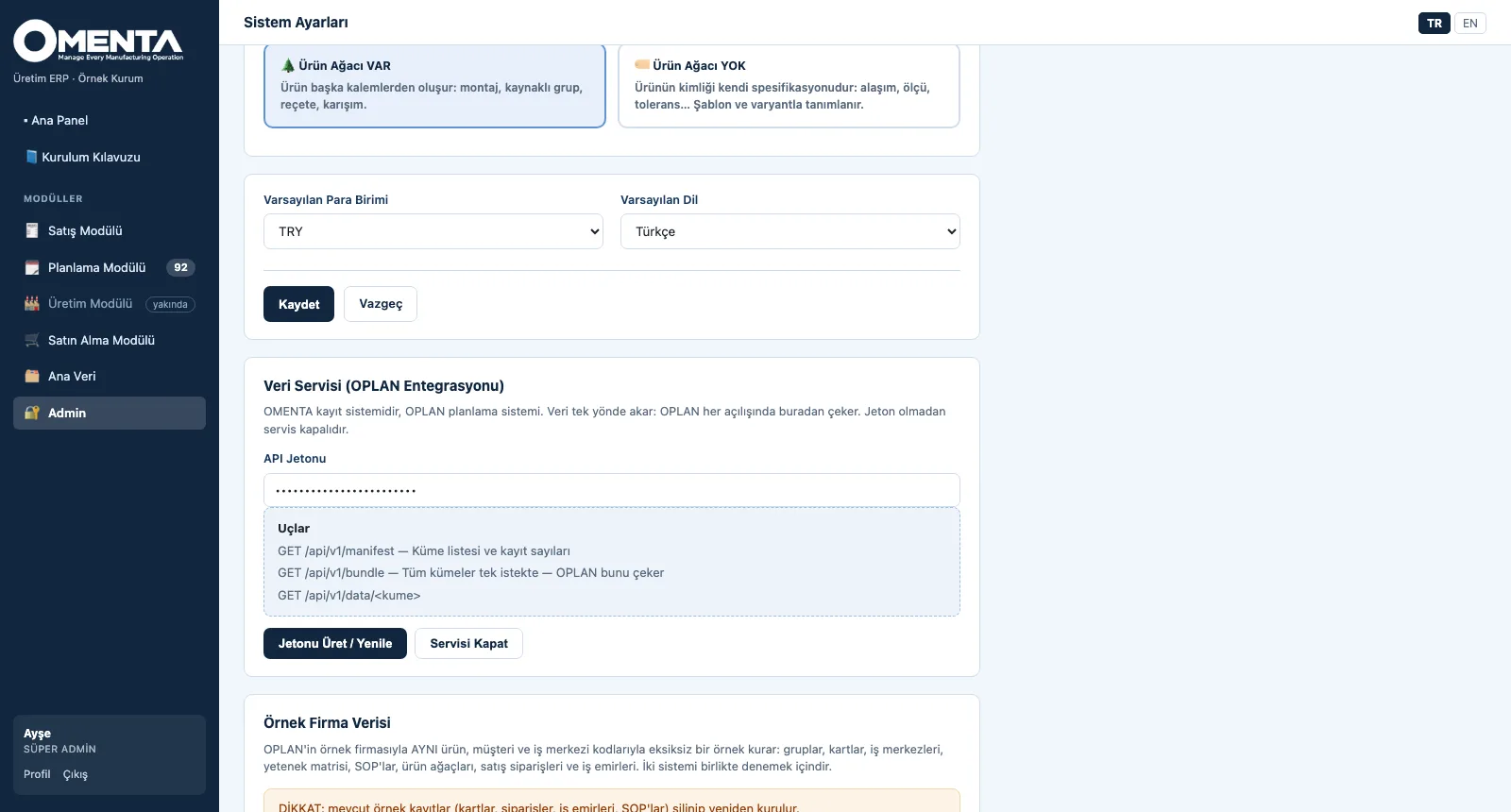
3. Publish to OPLANIn System Settings a token is generated or the service is switched off; the endpoints are listed on screen, and OPLAN pulls all data in one request each time it starts.

WO · Explore

PO · Source

Purchasing and Goods Receipt

From order to warehouse in four steps.
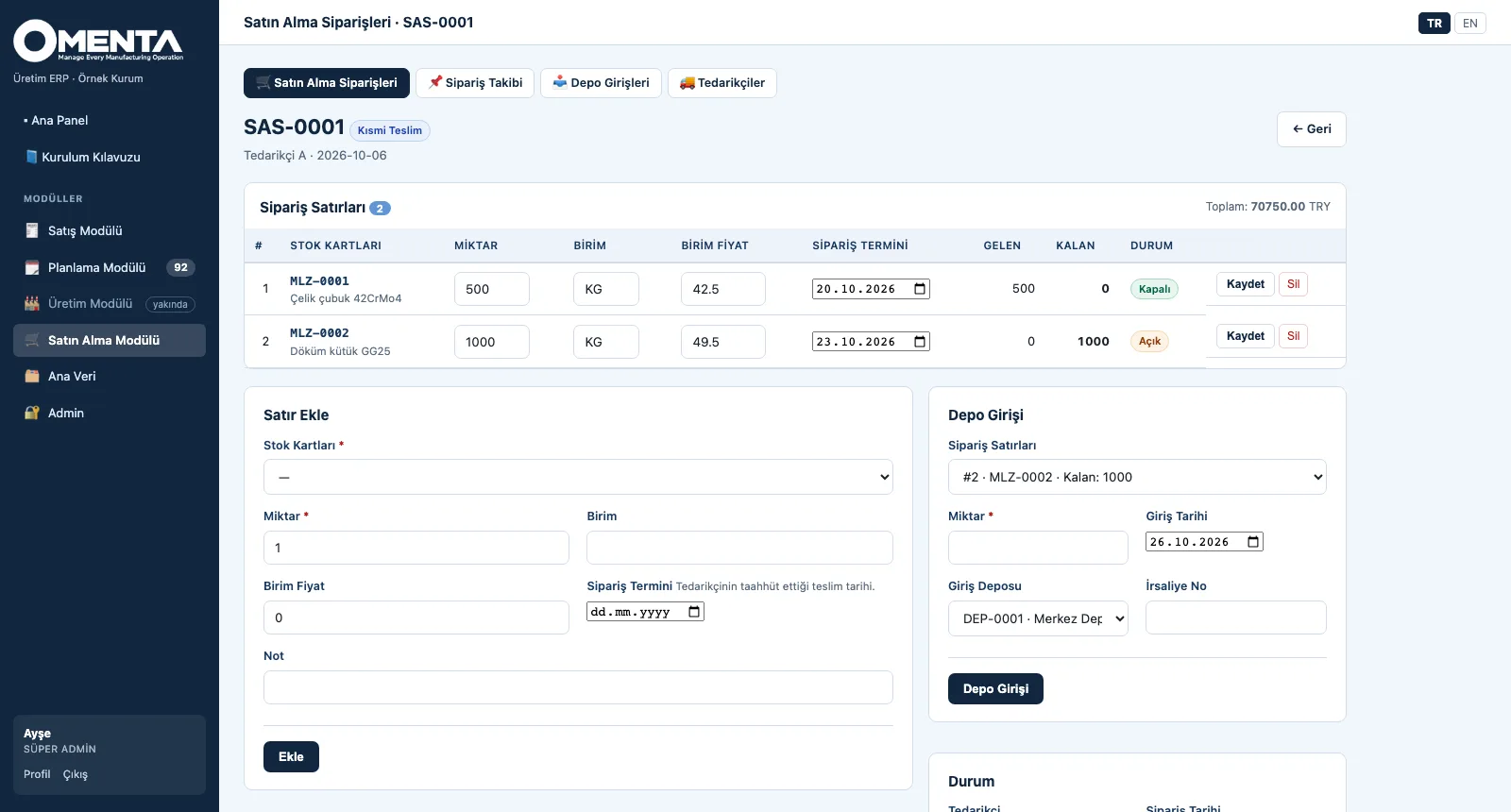
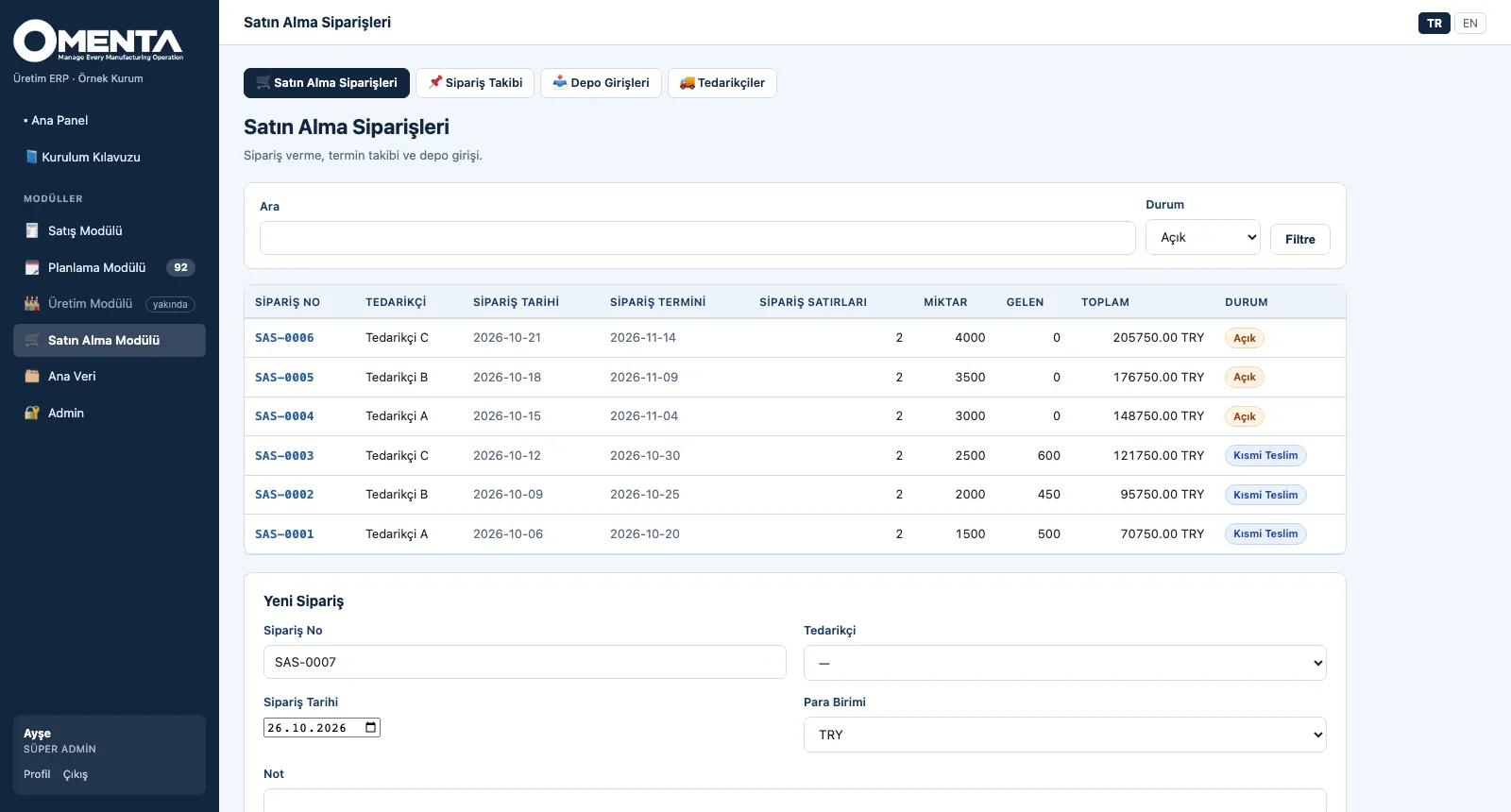
PO — See the orders
1. See the ordersWith supplier, order date, nearest promised date, number of lines, quantity, received and total amount; filtered by status.
PO — Manage lines and receipts
2. Manage lines and receiptsAdding and updating lines and posting goods receipts on the same page; remaining quantity and line status update with each receipt.
PO — Watch the dates
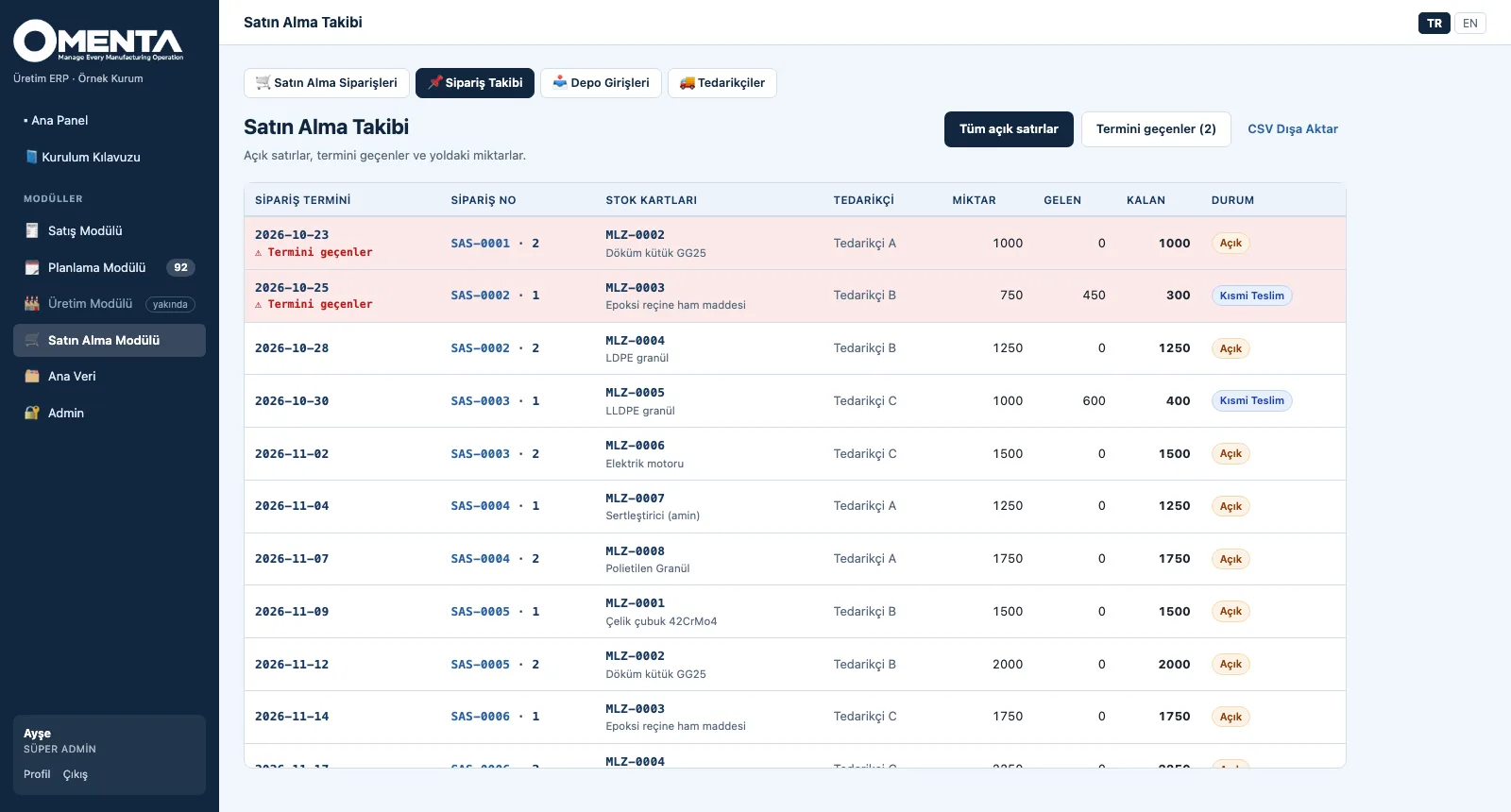
3. Watch the datesOpen lines sorted by promised date; overdue lines in red on top, partial deliveries and remaining quantity visible.
PO — See the warehouse
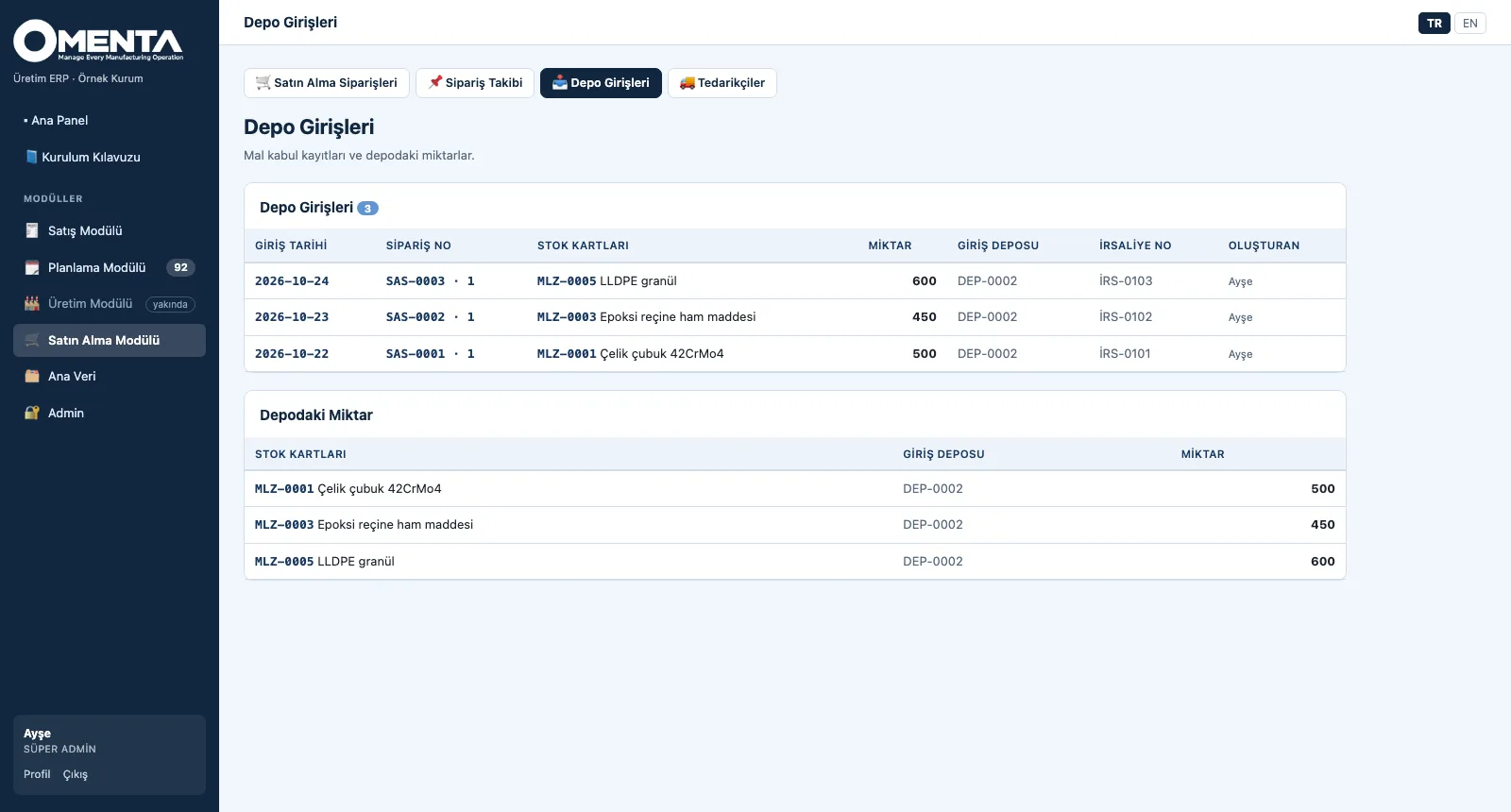
4. See the warehouseEach receipt with date, order, item, warehouse, delivery note no and the person who posted it; below, the quantity per item × warehouse.

PO · Explore

See your plant in OMENTA

Write to us for a live walkthrough on sample company data.

WhatsApp
GURU

GURU · OMENTA assistant

Ask about features, licenses and manufacturing ERP concepts.

+90 538 390 29 78 info@grupas.com.tr
Hi, I'm GURU! I can answer your questions about OMENTA and manufacturing ERP (bills of materials, specification-based products, SOPs, work orders, MTS / MTO / ETO, the OPLAN link).